tmux works on unix-like operating systems. It allows to access multiple terminal sessions in one window while keeping them persistents (like the screen utility).
You can extend its capabilities thanks to many plugins.
Installation:
* Ubuntu/Debian :
sudo apt-get install tmux
* Centos/Fedora/RHEL:
sudo dnf install tmux
Launch tmux :
tmux
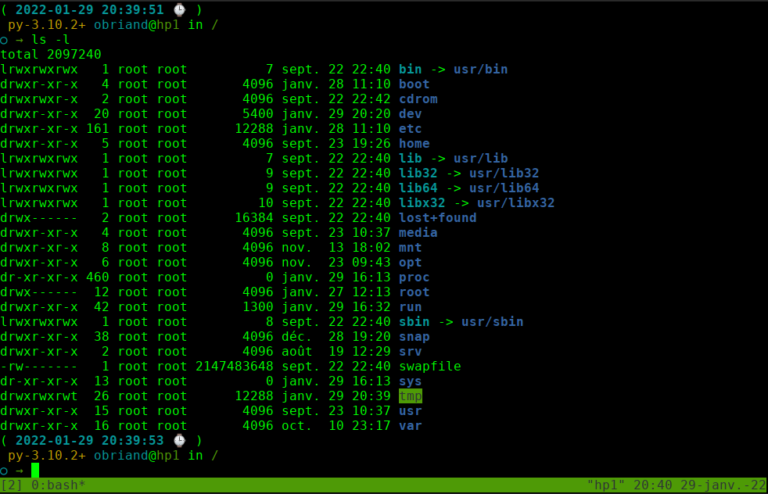
tmux opens a new window, with a status bar at the bottom.
type something, eg : ls -l
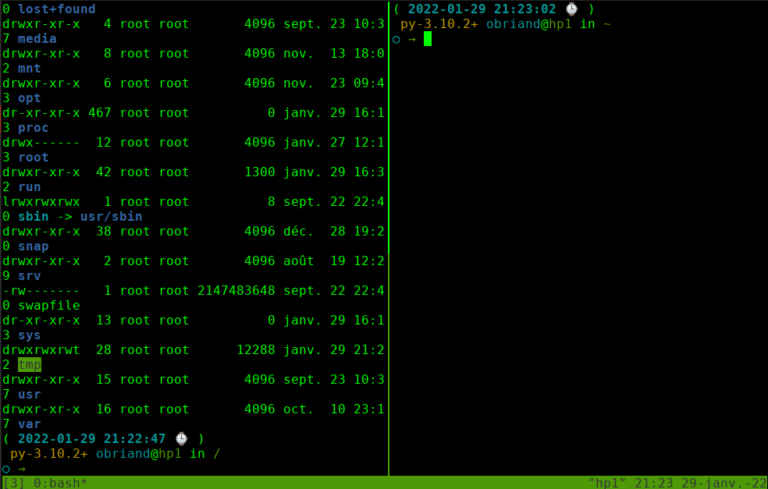
press ctrl+b+”
tmux splits the window verticaly
the blinking cursor indicates that the active window is the one on the right. It is empty.
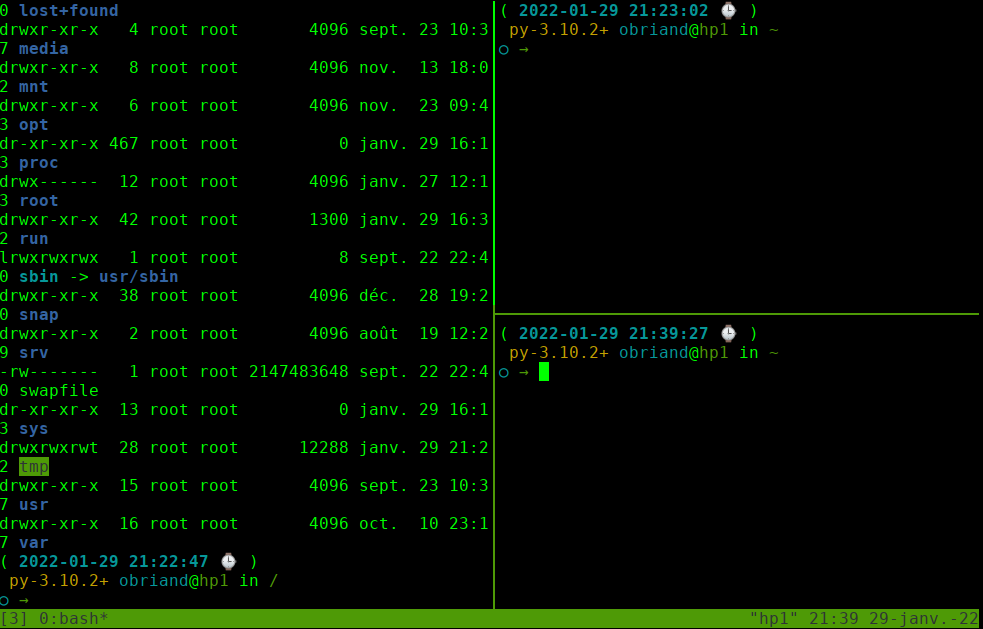
press ctrl ctrl+b+%
the right window is divided vertically into two parts.
The active window is at the bottom right.
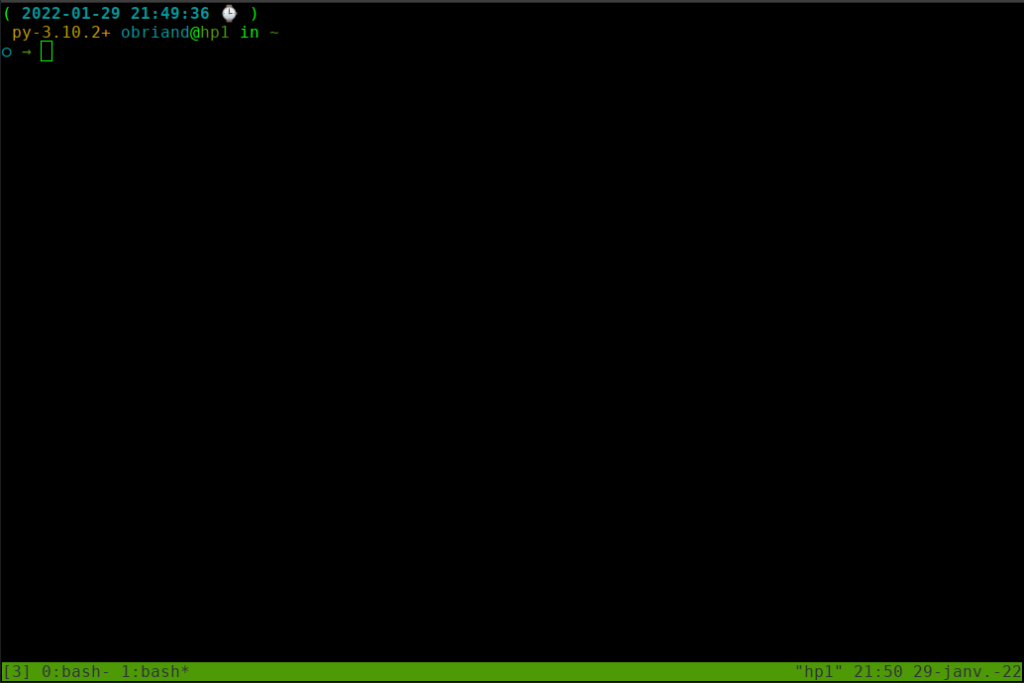
Press ctrl ctrl+b+c
Everything that was displayed in the window disappears: in fact a new window has been added to the previous one.
To return to the previous window, press ctrl+b+0.
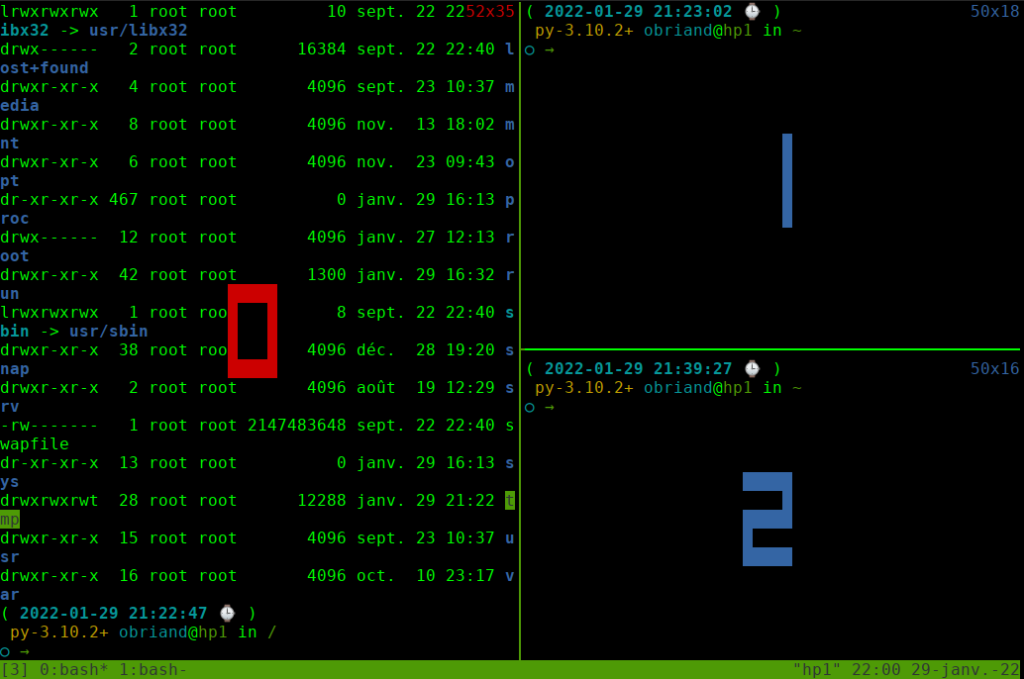
Type ctrl+b+q+0 : the active window becomes the left one.
Before you press the 0 key, you briefly see the 3 windows identified by a number: 0, 1 and 2. The key combination ctrl+b+q followed by one of these numbers allows you to access the window of your choice.
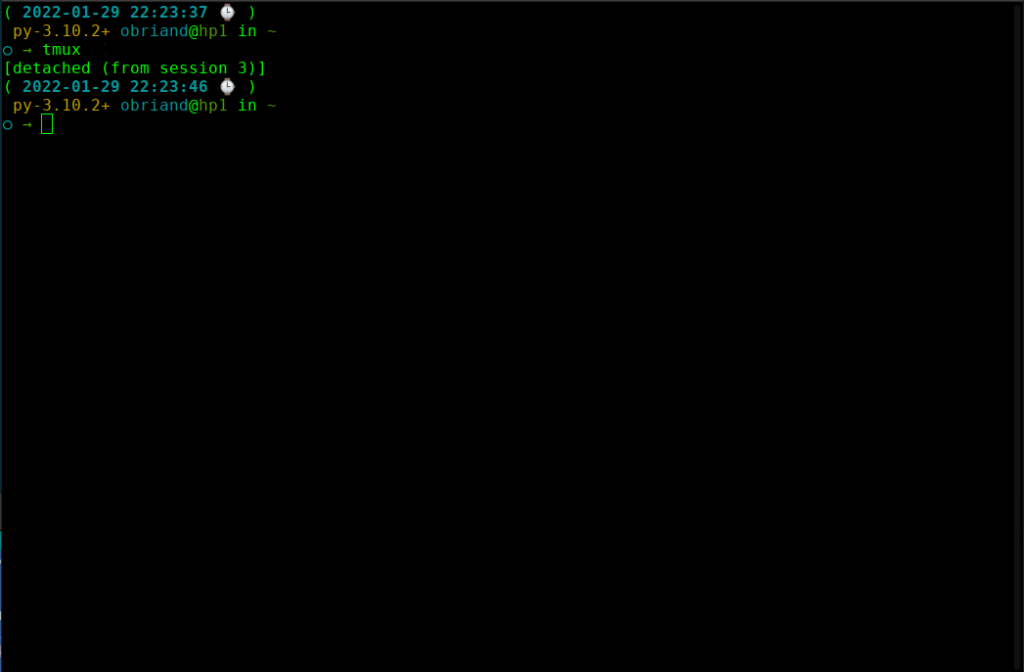
You can customize the tmux configuration by editing the ~/.tmux.conf file : for example set -g mouse-mode on will allow you to select the window with the mouse instead of the ctrl+b+q+n command.
You can finally extend the functionalities of tmux by installing plugins: for example the resurrect plugin allows the backup and restoration of the current layout.